

If someone has logged in under your account, changing your password may not lock them out. But changing your password *and* forcing every session to be logged out will.
Making sure your passwords are strong has never been more critical, but what is the right thing to do when login security seems permanently at risk?
The internet isn’t always a friendly place, and sometimes it can feel downright difficult. There’s a breach every day more or less cementing this, and if your passwords and logins aren’t at all secure, you’ll feel it worse than others.
When one bad password goes down, chances are several connected with your life are going to be affected.
It’s not because we’re all particularly bad at passwords, either, though that can be a factor. Rather, it’s because it isn’t always easy to remember passwords, and sometimes aspects of our passwords tend to be shared.
You’ll know this only too well if you’ve ever tried to recall a password, entering it in only to have it be eerily close to another. It’s a little too normal and also somewhat insecure, because passwords are supposed to be different. Very different.
A password problem

The problem with our online life is that passwords can be problematic. They’re the very thing locking down our accounts and our lives, and keeping unknowns out of it, but there are also so many, and they all need to be different.
Passwords should be complex and largely nonsensical. They should be difficult to guess, which also makes them difficult to remember. When they’re seemingly random and complex, they’re unlikely to be shared between services which is better for security, and fairly easy to replace if the worst happens.
Instead of needing to replace ten identical passwords, you only need to replace one. That’s a lot easier in the grand scheme of things.
But when they’re very much the same, it not only puts one set of logins at risk, it puts several in the crosshairs. It’s a problem.
Equally a problem is following all the rules for making a safe and secure password. They should be:
- Complex
- Made of a combination of letters in upper- and lowercase
- With numbers and punctuation, and
- Ultimately unique.
Essentially, passwords should be a bit of an incomprehensible mess, which is why they’re often difficult to recall. There are other ways to have a semi-secure password, such as to skip all the complexity and make your password a phrase only you would know made with numbers and letters, but the more complex to guess, the better the password. Even more so if it’s only used in one place, which makes it unique.
Understandably, this can feel like a problem. Between recollection and complexity, not to mention knowing that passwords can still be broken, you need to use all the tips and tools available to you to keep your online life as protected as possible.
Where do you even start?
1. Use the password manager you already have
You may not realise this, but your phone has a password manager. These days, most phones have one.
If you think about the world of phones, there are only two common mobile operating systems. In 2026, it’s iOS on the iPhone, and Android on pretty much everything else. There are feature phones with buttons some might refer to as “dumb phones”, but they typically lack major internet support so go without the password manager. But on smartphones, every device updated in the past few years has one built in.
On iOS, it’s Apple’s Passwords app, and on Android, it’s Google’s Password Manager which is connected to settings.
In fact, both of those can be found on the desktop: Macs can find passwords synchronised to their laptops and desktops from the Passwords app on iPhone and iPad, while Android syncs its passwords to Chrome on Windows and Mac, as well.
If you have a Samsung Android phone, you may also be using Samsung Pass, the Samsung equivalent. It’s really your choice, and you can find it in settings.

The point is your phone already has an app to help you look after the complex and impossible-to-recall passwords. These are the password managers you already have, and that are built directly into your device operating systems.
It’s important to know this because that level of password complexity you’re supposed to follow is literally impossible to recall and remember on your own, but a password manager can.
It can store the complexity for you, and even insert it in the apps and websites when it’s required. It can lock down your password collection using your face and fingerprint, and it can even tell you when the password has been compromised previously so you can fix it ASAP.
And using the password manager built into your phone can also make complex password suggestions for you, building new passwords so you don’t have to.
It’s just that extra bit of convenience you may not realise you have, and a great first step to being able to keep your password collection safe.
2. Lock down accounts with multi-factor

Regardless of whether your passwords or good or bad (and ideally we want them to be as good as possible), we also want to make your login security better.
To do that, we’re looking for a way to lock down your accounts with something that goes beyond the password. That’s where “multi-factor” comes in, also known as two-factor authentication, or the less widely used three-factor authentication.
Think of multi-factor (2FA, 3FA, MFA, etc) as a little like an extra security check or two needed when you make a credit card purchase. It’s a literal interpretation of a “multiple-factor”: your password is one, and then there’s something else.
It’s your password with a number sent to your phone, or your password with another key only you have access to, such as an authenticator app. It’s an extra factor to make sure you are who you say you are, and it bolsters the security significantly.
The problem with multi-factor, however, is that not every service supports it. Many do, and include the likes of social media, banks, utilities, telco, and government, making it an important aspect to switch on where you can.
However, not every service will, and it means you need a good password just in case. That password is just one factor to log in, so make it good. If multi-factor exists, turn it on and help keep your accounts even more secured.
3. Get stuck into passkeys
Passwords may be what most of us rely on today, but it doesn’t mean it will stay this way. There’s already a bit of a change on the horizon, though it will take time.
Passkeys are that change. They exist in two forms: physical and digital, and one will clearly gain more attention and use than the other because it costs nothing. They’re both technically digital, but the physical stores the digital side of things in a literal key.
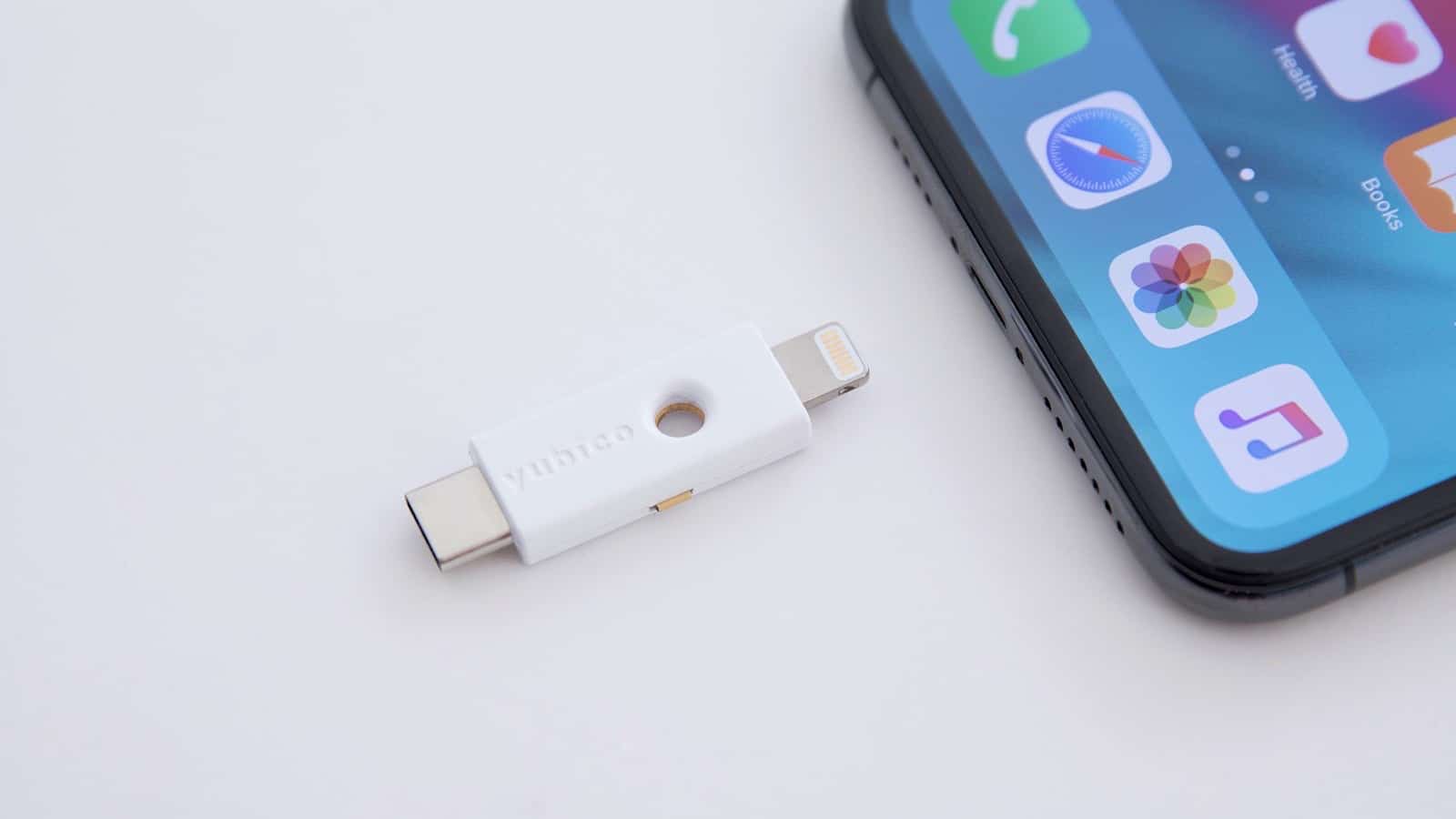
Physical passkeys cost something. They’re a type of secure key whereby your passwords and the very handshake representing you is stored securely on a specialty key that can use USB or wireless NFC to make that handshake happen. They tend to cost extra, and are more focused on business, but provide a way to easily log in, and tend to be kept on a physical keychain and still get password protected.
Digital passkeys are more likely to gain adoption because they simply rely on your phone or computer, and cost nothing for consumers to use. Services effectively turn your phone into the handshake mechanism because you keep your device with you.
Like multi-factor, the problem with digital passkeys is that not a lot of websites and services use them yet. Big ones will — Apple, Amazon, and Google do, for example — but services you might lean on may not.
Technically, passkeys are the solution that replaces password and multi-factor all in one, letting your device’s proximity to your presence effectively cover both. They’re faster and easier, and are on the cards to eventually replace passwords entirely, but that’s going to take some time.
For now, if a service you use suggests a passkey, consider taking it up and putting into action. It might just relieve a headache or two.

What to do if your account is broken into
Even with passwords and multi-factor and passkeys made a part of your world, it’s still entirely possible that your world could be hacked.
Through no fault of your own, the website or services you rely on might see a breach, leaving your password worse for wear and stolen. What do you do?
First things first, change your password. If you’ve followed this guide, you’ll only have the one password for a specific site and account, so you’ll only need to change one password.
Your password manager might even alert you to the breach and prompt you to change it. When you make your way to the site and app, it should pick up on a new password and replace the old one. That’ll put a stop to the biggest problem.
Next, log in and check if everything is the same.
If it’s a bank, check your transactions. Make sure your money is still very much where it should be. If it isn’t, contact the bank and tell them immediately.
If it’s a service, make sure your email and contact details are still registered, because that’s one of the first places a hack can make a difference. Replacing the details can see criminals take over your account, rather than let you claim it back.
If it’s social media, check to see you haven’t made posts that you didn’t make. Scammers like to use social engineering by breaking into accounts and spreading links that way. Check your posts to make sure it hasn’t happened to you.
Once everything is secure, take one more course of action: if an app or service offers the option to log out of every session, do it. You may need to log back in on some devices, like reauthorising an account on an Apple TV or Sonos or something like it, or logging back in on a laptop, but taking this action also logs everyone else out.
If someone has logged in under your account, changing your password may not lock them out. But changing your password and forcing every session to be logged out should finish the job.
It’s just one more way you can help secure everything following a breach, and another way to rest a little easier, at least until the next one.