

You don’t need a “World Password Day” to know you can make passwords better, but here’s a timely reminder of what to do if you need it.
There’s a new scam seemingly every day, and typically a new data breach following it, making security one of the more important issues each and every day. It is frustrating that life needs to be that way, especially when we all have so much more important things to do and to worry about, and yet such is life.
The problem is that when either of these things rear their ugly head, they’re often connected to another vitally important aspect of security: passwords.
We all have them, and truth be told, many are terrible. No one is perfect at passwords, and for most of us, they can actually be just a major hassle.
They’re either too long, too short, or just plain impossible to remember. If you’re told to have a different password for every app and service, how do you recall which password you need when you need it?
It gets worse when you realise that so many of us starting using passwords before password hygiene was even a thing. That means our old passwords are very likely the awful ones, and more of a hassle to go back through and fix.
Passwords are a pain. There’s really no other way to say it.
But passwords are also entirely useful, and until the entire world moves to passkeys — where your phone becomes your password’s handshake mechanism — you still need to have them hanging around. They’re your entrance to nearly everything: to music and social and streaming and to your bank.
So what can you do to make passwords better overall?

1. Turn on multi-factor (if you can)
The first and arguably one of the most important things doesn’t technically have anything to do with passwords: multi-factor authentication (MFA).
Also known as 2FA and 3FA for “two factor” and “three factor” respectively, multi-factor authentication asks a service to check with you two or three ways when you log in. It’s not just a password, but rather a password and something else.
It could be a password and an SMS with a code to your phone, or a password and a phone call. In some instances, it’ll be a password and a code from an authenticator app.
Most people will end up using the text message to their phone, but the point is that multifactor authentication means services aren’t leaning on your password as being the only gatekeeper to your account. Rather, the password only lets someone in with an extra factor, securing an account better with a minimum of two points of security, rather than merely one.
2. Use your phone’s password manager
You’ve already probably been told that every password needs to be unique, and while that sounds nice in theory, the reality is that remembering more than one password can be really difficult.
So instead of leaning on your memory, use what your phone provides with a built-in password manager.
On iPhone, it’s the Passwords app, which connects through to any iPad or Macs you might own, and shares the passwords with those devices.
Meanwhile, owners of an Android phone can save their passwords to Google, which will in turn share the passwords with any version of Chrome (Mac or Windows) where you’re logged under the same account.
Samsung’s equivalent on Galaxy phones can store passwords, too, but it won’t sync them to any computer unless it’s one made by Samsung. That means if you’re a Galaxy phone owner, you may want to switch to Google’s own password manager in the password settings, which will synchronise your passwords to another platform, not just the phone.

3. Come up with a cypher
Whether you use a password manager or not, you may want to come up with your own little code to for use in passwords, kind of like a cypher. Typically it’ll be a few words and a number, but it can actually be a phrase made up of numbers and punctuation, giving you something to recall that’s specific to you.
For instance, if you love matcha, the base word or phrase could start out as “ilovematcha”, but then become something more secure by changing letters to numbers, changing case, and adding punctuation, making it more like “IL0v3M@tcha”.
While not as complex as a whole sequence of numbers, letters, and punctuation in a random order, it gives you a better password than simply leaving it as a few words and hoping for the best.
4. Use variations specific to a service
Once you have your little code, you might want to flex the whole rule of “a different password for every service” by adding a few letters to the end of your complex password.
Doing this can turn a complex password into a something repeatable for various services, while keeping passwords somewhat easy to recall.
Remember that “IL0v3M@tcha” password from before? We can make it specific to facebook by adding “fb” to the end, or for eBay by adding “eb”. Add in an exclamation mark or two, and “IL0v3M@tcha” can become wholly unique for Facebook as “IL0v3M@tcha!fb!”, while eBay might become “IL0v3M@tcha!eb@y!”.
At that point, both would be complex and individual, cutting back on the risk just a little bit.
It’s worth remembering that the very reason to have different passwords is your security. Keeping the same passwords means that if one is breached, leaked, or just simply guessed, it can be used to break into more of your services.
But making them unique helps prevent that from happening, and while a random string of characters is one of the best approaches, as is storing it in a password manager, this method can help you recall individual passwords as and when you need to.
It’s an old approach, but it’s one that still largely works today.
5. Switch to a passkey
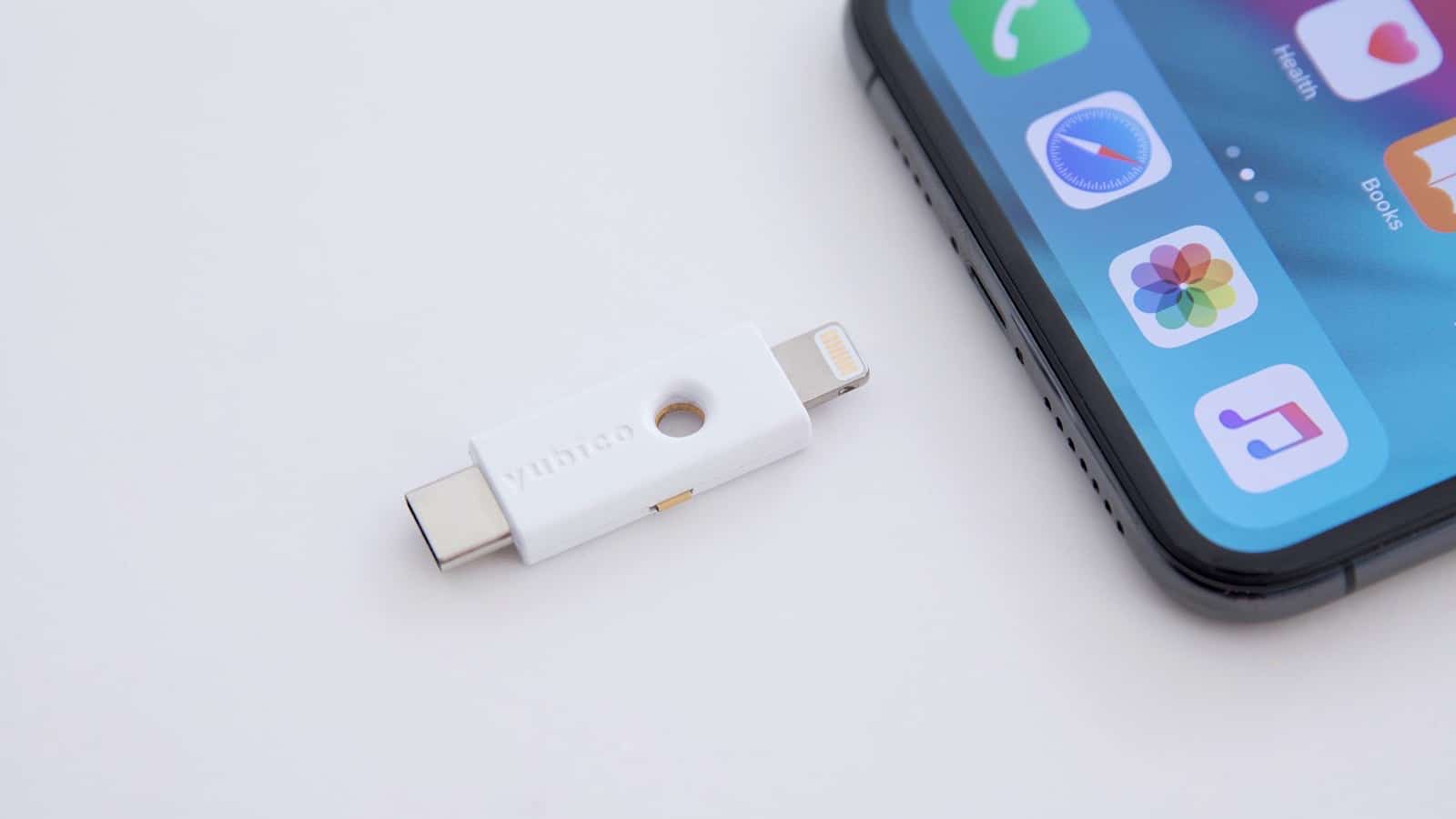
One of the most effective solutions you can use is to switch to a passkey, either the digital version that uses your phone as the primary password or one using a physical passkey.
Both are seen as a more modern approach to passwords, and can be easier to connect with, but they might not be ready for every service you use.
Major apps and services such as Apple and Google accounts, Amazon, eBay, and many more have already started using the digital equivalent of a passkey, but you might also prefer the physical passkey to take around with you, such as a Yubico passkey. These little gadgets are a little like a USB key, but just for passwords, with the data stored on them and often protected by a PIN only you know.
Think of them as a way for your computer to pass its password knowledge without having to type anything, which is very much like what the digital passkey is for, as well.