
Most messages come from friends and family, but what happens when unwanted pics and texts arrive on an iPhone? There’s no app for that, but fortunately there is a setting.
Our phones are great for sending and receiving messages, and most of the time, you’ll probably know who is messaging you.
A friend. A family member. Someone you’ve just met who you gave your number to. Every one of these is a message that makes sense, someone that sits in your mind that you can draw a mental picture of.
But what about when someone sends you a message out of the blue, and what if it comes with a picture?
If you’re lucky, it’ll go straight to spam, but more often than not, that photo lands front and centre. And even if you know the person, if the image isn’t welcome, it’s sitting waiting in your phone, potentially making you feel unsafe.
It can start so innocuously. A message from out of the blue. From a new friend or someone you’ve just seen. Maybe someone you met the other week. We’ve all been there.
Hopefully, your conversation goes well. Is calm. Is friendly. Is safe.
Your phone should be your safe space. It should be a spot that no one can intrude upon. It’s yours.
And yet terrible people can do terrible things. Take the problem of cyberflashing, something that is a real thing, as less than fantastic individuals haunt the digital world with random elicit digital transmissions.
Much like sextortion scams, it’s the domain of bullies and offenders to send out unwanted imagery, all because you had the misfortune to have Bluetooth switched on. Leave your phone’s wireless settings open around the wrong individual and you’re bound to receive one, but share your phone number with a total random and the chance to get an assortment of picks of pics rises.
Back in 2018, a YouGov UK poll found that 54 percent of women aged 18 to 24 had received an unsolicited photo of a male member and real life equivalent of an eggplant emoji, an act there are laws for, laws to prevent. But that doesn’t mean everyone will abide.
Keeping Bluetooth locked down is an important form of cyber-hygiene able to protect and guard against this form of harassment, but it’s not the only way for your phone to feel intruded upon. There’s always the simple text message, and the seemingly never-ending barrage.
The good news is you can easily block someone and they’ll be none-the-wiser, your phone essentially putting a silencer on anything they try to send and stopping it in its tracks.
But what if unwanted messages are coming in from someone you can’t block? What if the unsolicited nature of their sends is making it difficult to look at your phone?
For that, you might want to check out your message options, and move on past any never-ending text box streams.
Tweaking message options to keep your phone a safe space
The phrase “there’s an app for that” has become synonymous with how your phone can do everything, and these days, it more or less can.
But while there’s no app to specifically block unwanted messages, the good news is that both Android and iPhone support the feature in their settings. You just need to find it.
It’s a technology that has been evolving over the past year, with Apple evolving a feature known as “Communications Safety” and using a system to detect nudity in messages and FaceTime calls, blocking it from devices of users aged under 18, while also changing how messages are sorted.
It’s something largely brought to the surface by the social media age assurance regulation, but it doesn’t mean you have to necessarily be young to benefit from the same technology.
iPhone message settings
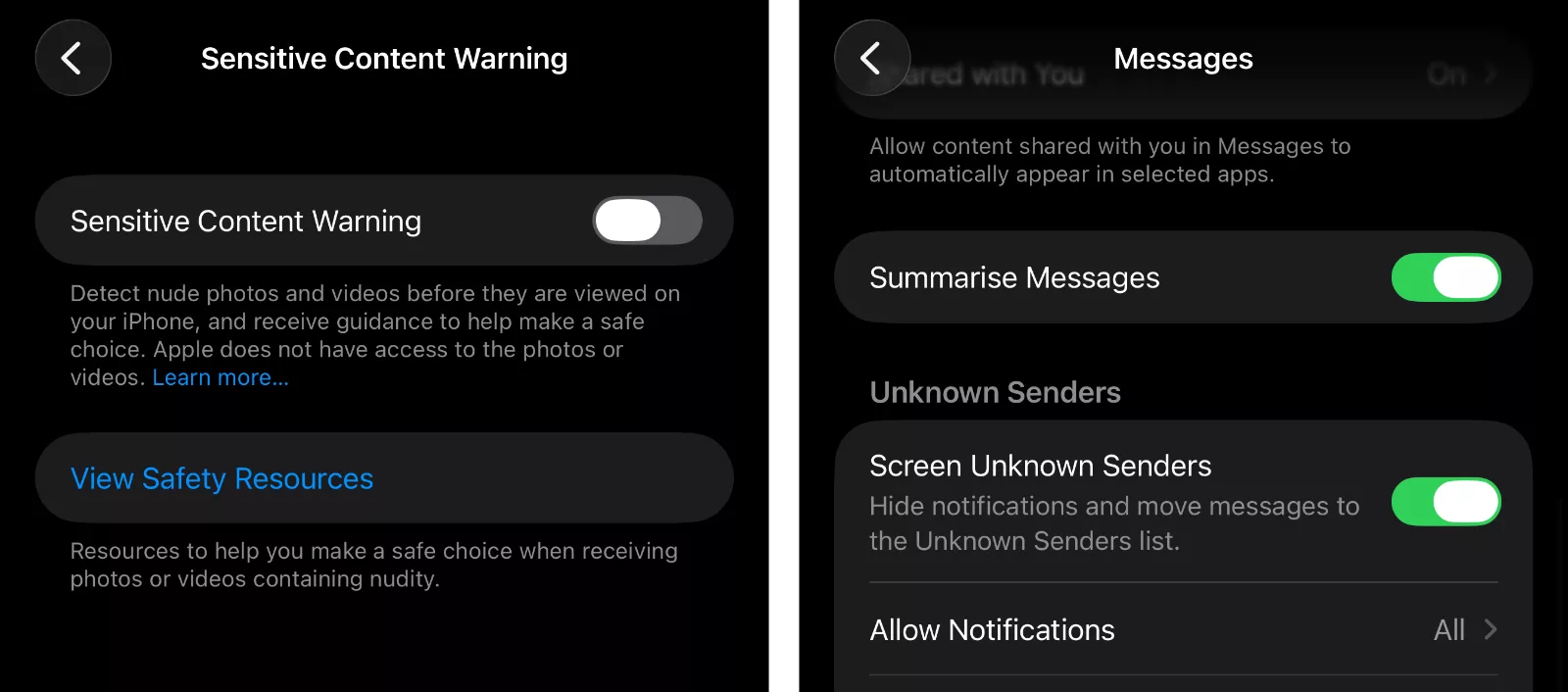
On iPhone, you’re looking for a setting inside your settings for “Messages” called “Sensitive Content Warning”, where you can easily switch on a system on your iPhone that detects nude images and videos sent over messaging apps, blurring them before you actually see them.
It’s more or less the same mechanism that Apple uses for its child protection technology , but just provided for adults, too. You can still get around the protection and see the image if you want, but any nudity will be blocked until you give it the all clear. The controls can technically work outside of messages and in FaceTime, as well as any other app where a developer chooses to integrate it.
When it comes to dealing with unknown messages, you might also want to switch on the ability to screen unknown senders.
Once this is switched on, anyone unknown makes their way to a list you need to proactively switch over to in your Messages inbox, clearing any hefty message maker from your phone.
“Unknown Senders” essentially becomes a graveyard for scams and spam and people you didn’t want to hear from in the first place.
Android message settings
We’d be remiss if we didn’t consider folks on Android, because it does cover half of the market. And provided you have a recently updated Android phone, you’ll find something similar, though you won’t find the setting in the Settings screen.
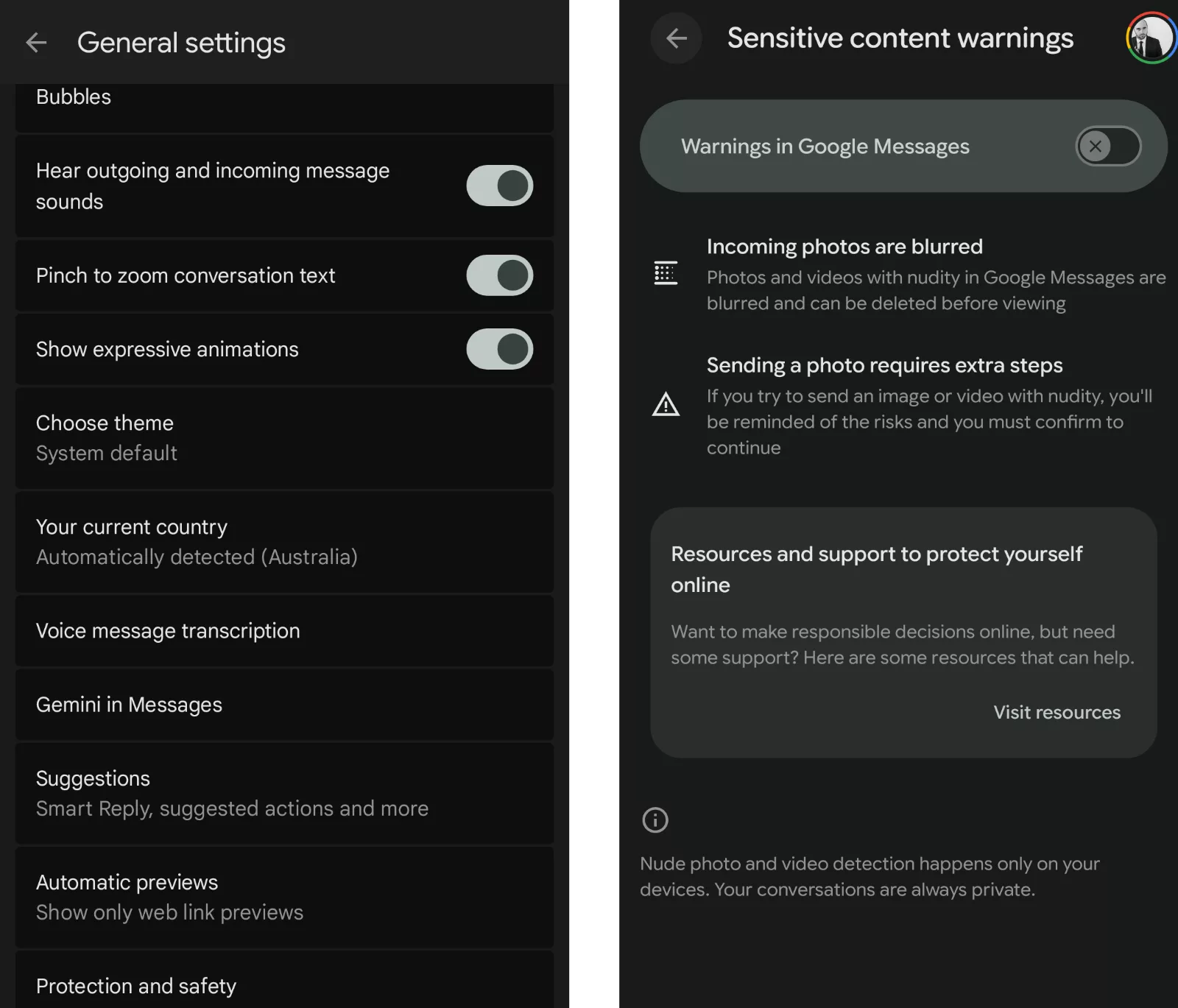
Rather, it’s in the “Messages” app for Android when you click on your avatar or menu, and dive into “message settings” and then “protection and safety”, something we found on the Pixel 10 Pro XL (and will likely be in other Android models, as well).
From there, you can click into “sensitive content warnings” to automatically blur an image or video, with automatic detection happening like the iPhone and only on your device.
A potentially satisfying ending
Frustratingly, this sort of aggressive behaviour can be seen as bullying, a behaviour that doesn’t always work to simply ignore and hope it goes away. As adults, we have it in our power to try this approach, though if it becomes serious, you have another option: to go nuclear and block.
Again, technology is on your side, with a clear push to smash down the ban hammer and block anyone trying this. If it goes any further, contact the police. Anyone can do it, and no one is owed access to your phone.
But if you’re wondering at all what it feels like to ban someone after you’ve enacted these filters and protections, we’ve provided a handy simulator below.
No two phones are the same when it comes to blocking something, and your iPhone won’t have a ban button like our little red ban button, but you may find it an appealing simulation of what it’s like to simply shut someone out who shouldn’t have been there in the first place.
In case you’re curious what that’s like, press the red button on the below simulator when you tire of unwanted and unwarranted aggression. You’ll feel much better, and you can use a similar block on your own phone if it ever happens to you.