
Only a few weeks into the new year, parents are at the crossroads they regularly find themselves yearly. It’s back to school season, and it’s time to study the checklist schools have given out to work out what your kids will need for the year.
There are pens and pencils and exercise books and more, and then you may find yourself glance over to the things that are a little more electrically charged. Laptops and monitors and gear, oh my!
If the students in your life are still relying on an older laptop, you may not need to follow this guide (or any of the other back-to-school guides we’ve published). They may be completely fine. But if you need to buy a laptop or tablet for the young adults growing up too fast in your household, it’s time to consider their needs now, and a little bit in the future as well.
Check with the school first
First up, you’ll want to contact your school for any notes, checklists, or requirements.
Ahead of the school year, it’s entirely possible your school has been proactive and done that already, giving you a spec list alongside the need for pencils, paper exercise books, and any other bit that students will need. However, if what they need is a certain grade of computer, schools will typically have provided that.
The reasons vary, and certain schools and grades will offer different reasons. For instance, if the IT department at one school is more confident on Windows than Mac, it may be suggested that someone has a Windows laptop. Likewise, there may be certain requirements for the apps needed by a school.
Some schools may be fine with an iPad, while others may even simply say “no iPads allowed”. If they rely on the Seesaw app, it won’t typically matter what type of device you use, because much of what the platform uses can be web focused.

Depending on the school or grade or class in question, there may be specific apps you need which can only run on Windows or Mac, and not on other operating systems. If you need Adobe Photoshop and the school offers a license for it, you will definitely need one of those, with neither Android, iPadOS, or any other platform supporting the software.
It’s why checking with a school is so important, because every school is different, and what works for one school may not work for another.
Regardless of if a school is near another, check with the school first of all and make sure there are no specific requirements for a school laptop or tablet. If there is a checklist of specs and requirements, follow them. But if not, your options are a little more open.
Size matters (and so does weight)
Once you know what sort of specs you need (or may not need), it’s time to pick something suitable for your kids, and that means looking at size.
While size may not matter for everything, for laptops there’s an on-brand reason why size matters: it translates to whether a computer becomes cumbersome for a child to carry.
For instance, a highly portable laptop is typically 12 to 14 inches, with 13 inches often seen as the sweet spot for the most portable machines. These are not only perfectly sized for backpacks, but also easy to grow with and range from around 1 kilogram to maxing out at a little over 2 kg.
Meanwhile, a slightly larger screen at 15 or 16 inches can provide more screen real estate, but not only demands a bigger backpack, but also a little more heft to carry. Larger laptops typically weigh from 2 kilograms and go up from there, and this can feel really heavy depending on what else students are carrying.
Kids in primary school might even prefer a smaller device, making a 10 to 12 inch laptop or tablet possibly ideal because they’re smaller, and don’t always weigh as much.
Price is also clearly a factor, and that’s where the size argument can get truly confusing: some 15 inch laptops are often inexpensive compared to their 13 inch siblings, often because the technology used in a 15 inch laptop may not be as top tier as smaller laptops.
If you can, try not to think about the price difference between laptops, and instead focus on a size your children and high schoolers will be comfortable with. While price almost definitely will play a part in the decision, size should play a bigger part, as it’s a decision that will stick with them and their backpack for some time to come.
AI on school laptops
There’s one other aspect you’ll likely think about, though it probably shouldn’t play a huge part: AI. It’s everywhere these days, whether you like it or not.
Perhaps unsurprisingly, AI is also on laptops, coming in the form of the AI PC, which is another way of saying “a computer that supports AI”, even if it may not proactively use it.
In 2026, that may as well be every laptop, because nearly every laptop includes some form of neural processor where AI is considered. Intel’s chips have it, and so do AMD’s. Meanwhile, Apple’s MacBooks have supported AI for several years, and other companies are including AI in their computer processors, as well.
What AI does on a PC may not really effect school or students largely because it doesn’t do a whole lot of anything major just yet. In fact, most AI PCs rely on AI on the internet to use AI. That includes using ChatGPT or Google Gemini, polishing up emails or text using these or similar services, and editing photos or videos with AI, as well.
Ultimately, while AI is a part of most laptops you buy new in 2026, you may not need to worry about it. Artificial intelligence isn’t doing a lot on laptops today, and chances are if kids try using it in school, their teaches will notice it very quickly and tell them to stop.
A note about hand-me-downs
If you know that you’re not purchasing new and are considering handing something down, it’s best to make sure of a few things.
First things first, we’d ensure a used laptop has been properly reset and is waiting for a new user to start installing things on it. You shouldn’t just give kids your old laptop, thinking the same install is fine. An old laptop will probably have so much installed that it may not perform as it once did, and it may even have the odd password protecting its install, as well.
Resetting a laptop will not only clear out old software, but it also helps bring the laptop back to where it was when it was first purchased, somewhat, anyway. A factory reset is a little like a new lease on life, and it can give a laptop that “new laptop feeling” without a new laptop being purchased.
Depending on how old the used computer is, you may want to get some things replaced. Consider replacing storage if you can, or getting a new battery, or even just getting the keyboard cleaned.
These days, some of these are less likely: storage tends to be soldered on, batteries aren’t replaceable, and keyboard cleaning may require a specialist. But the age and quality of the laptop you’re handing over may need these as it’s impossible to know how well a used laptop has been treated.
The last thing anyone wants is for a computer to crash in the middle of work, or even to shut down in the middle of school. That’s certainly a problem that can happen with any computer, but it’s definitely more of an issue with older laptops that haven’t seen a lot of maintenance.
Things that matter
While AI may not really matter much on a student laptop in 2026, there are some features you definitely want to consider, and battery life is one of them. That could even be a problem with a used laptop.
Ideally, you want a laptop that can handle at least 6 hours of battery life, because that’s the battery that will get them through school. But because battery life can vary wildly even in our own laptop reviews, one feature that’s a must have in 2026 is USB Type-C, also known as the USB-C port.
The same port that comes on every new phone, tablet, headphones, speaker, camera, game system, and yes, laptops as well, the USB-C port is the standard for ports and an easy one to consider. It’s everywhere, and if you find it on a laptop, it should be more than just a data port, but also a charging port, too.
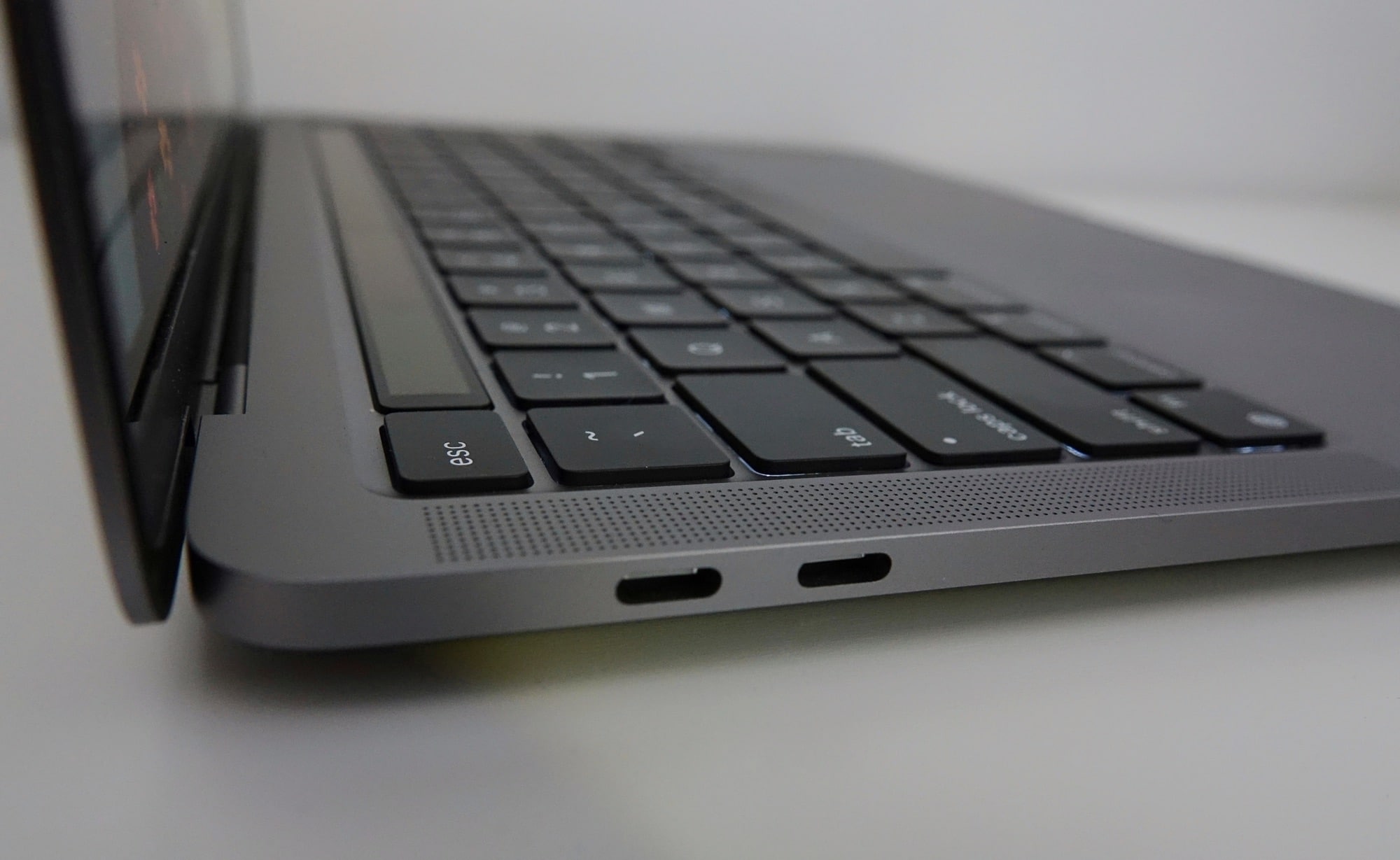
There’s a reason why USB-C matters as one of the things that matter: if a student’s laptop runs out of battery, you ideally want someone nearby to have the same plug to charge their laptop with.
In 2026, that’s the USB-C port, and it’s a big deal. Giving your kids a hand-me-down doesn’t guarantee this, because the use of the USB-C port as a charging port is still a relatively new thing, only appearing on laptops for the past 3 to 5 years.
Make sure you’re aware of this when you’re looking at giving your kids a computer, because it will make the difference on whether they simply need to carry a small cable or none at all, and a giant power pack alongside they’re actual laptop computer.
The tablet option with iPad and Android
Before jumping into actual computers, you may want to look into whether an iPad or Android tablet is supported, because this is a thing that can help you avoid the question of needing a laptop in school.
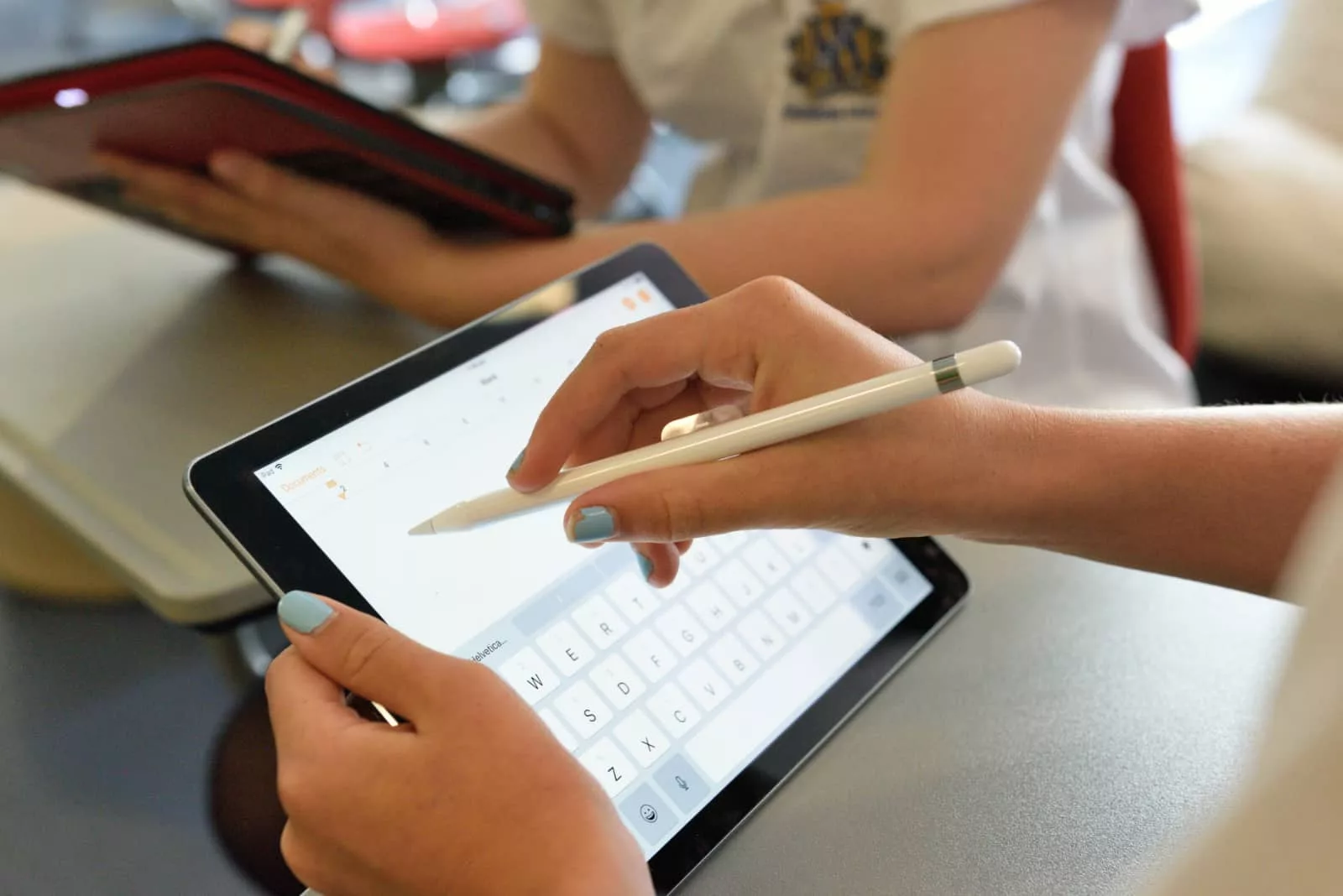
While an iPad is one of the best tablets around, and there are quite a few variants, you’ll definitely want to attach a keyboard to one if you bring it to school
Some schools will outright say “no” to tablets, so make sure you check with a school beforehand. That’s literally the reason this guide starts with the tip of checking with the school. Assuming an iPad is fine can actually go the wrong way if your child needs to rely on software that only runs on Windows or Mac.
Sticking to budgets with Chromebooks
Of course, Windows and Mac aren’t the only solutions for a laptop. We’ll dive into those choices shortly, but before we get there, let’s talk about the budget laptop option: Chromebooks.
Chromebooks are a computer type not everyone understands. Wedged somewhere between a laptop and an installation of Chrome, a Chromebook is a laptop that basically just runs the Chrome web browser for everything. It can actually do that.
You might think of Chrome as just being a web browser, but Google has flexed the tech and programming to be a little more capable. It can play music. It can write documents with the help of Google Office. It can even play web-based games, and wouldn’t you know it, there’s even a Chrome-based version of Minecraft.
It can even run AI using Gemini with recent changes to the Chromebook formula now known as “Chromebook Plus”.
We’ve all used Google’s Chrome web browser, and that’s largely what makes the Chromebook so attractive. It’s simply and easy, but it also comes with one other positive: it’s inexpensive.
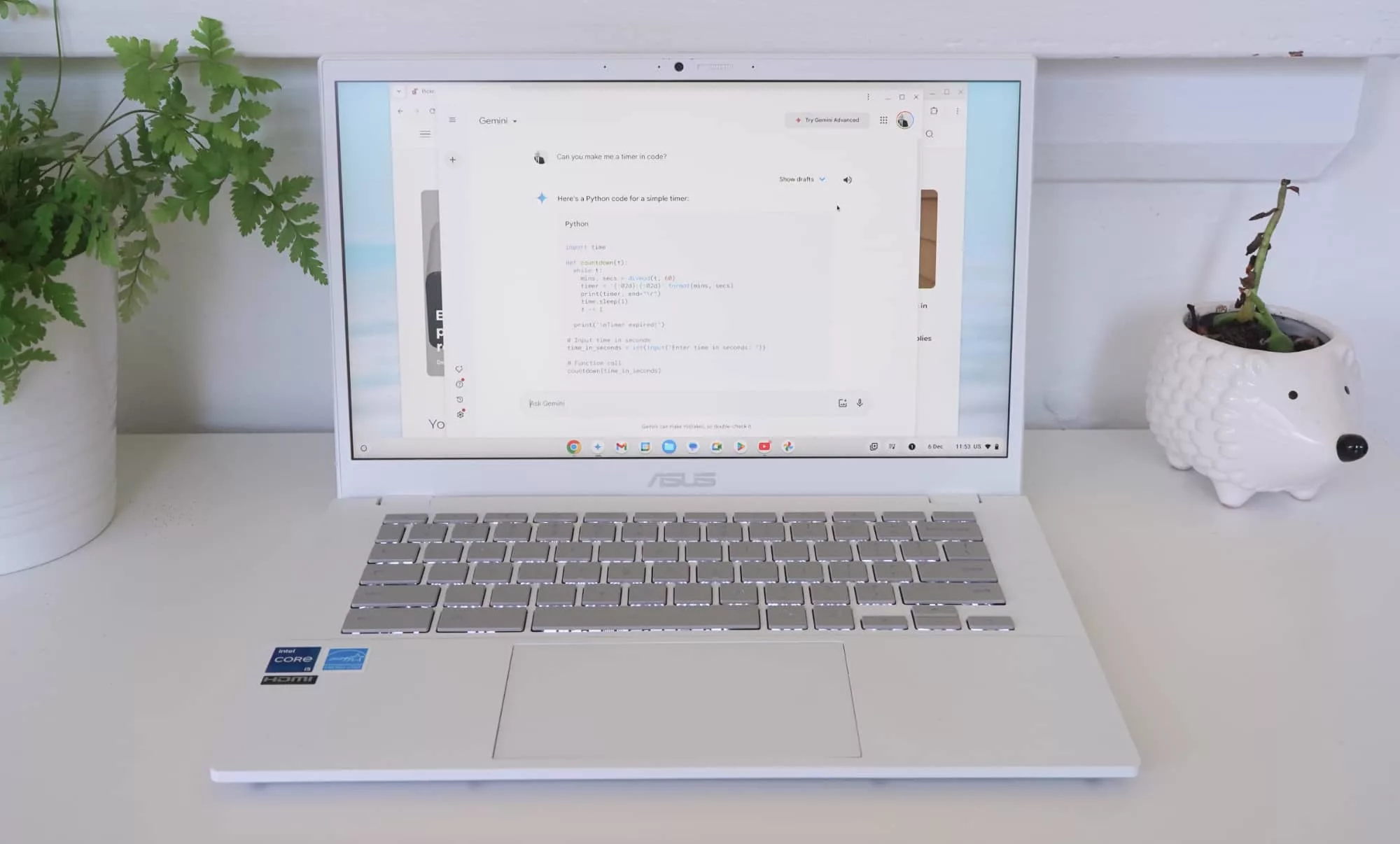
Chromebooks typically start at around the $249 mark in Australia, and vary based on amount of storage and screen type. Every Chromebook is a laptop with a keyboard nearby, though some are touch-based, and they all use the same operating system and approach.
They all have WiFi. They all have Bluetooth. They all typically have decent battery life, because Chromebooks don’t need a heap of power. They can even be monitored by parents using the Google family controls normally used when setting up tablets or phones for kids.
So about the only consideration you need with a Chromebook is storage and price. If your kids won’t be doing much more than web research, browsing, writing and schoolwork, plus the occasional TV viewing, a 64GB Chromebook will be fine. If they plan on using it for longer, you’ll want to start at 128GB storage.
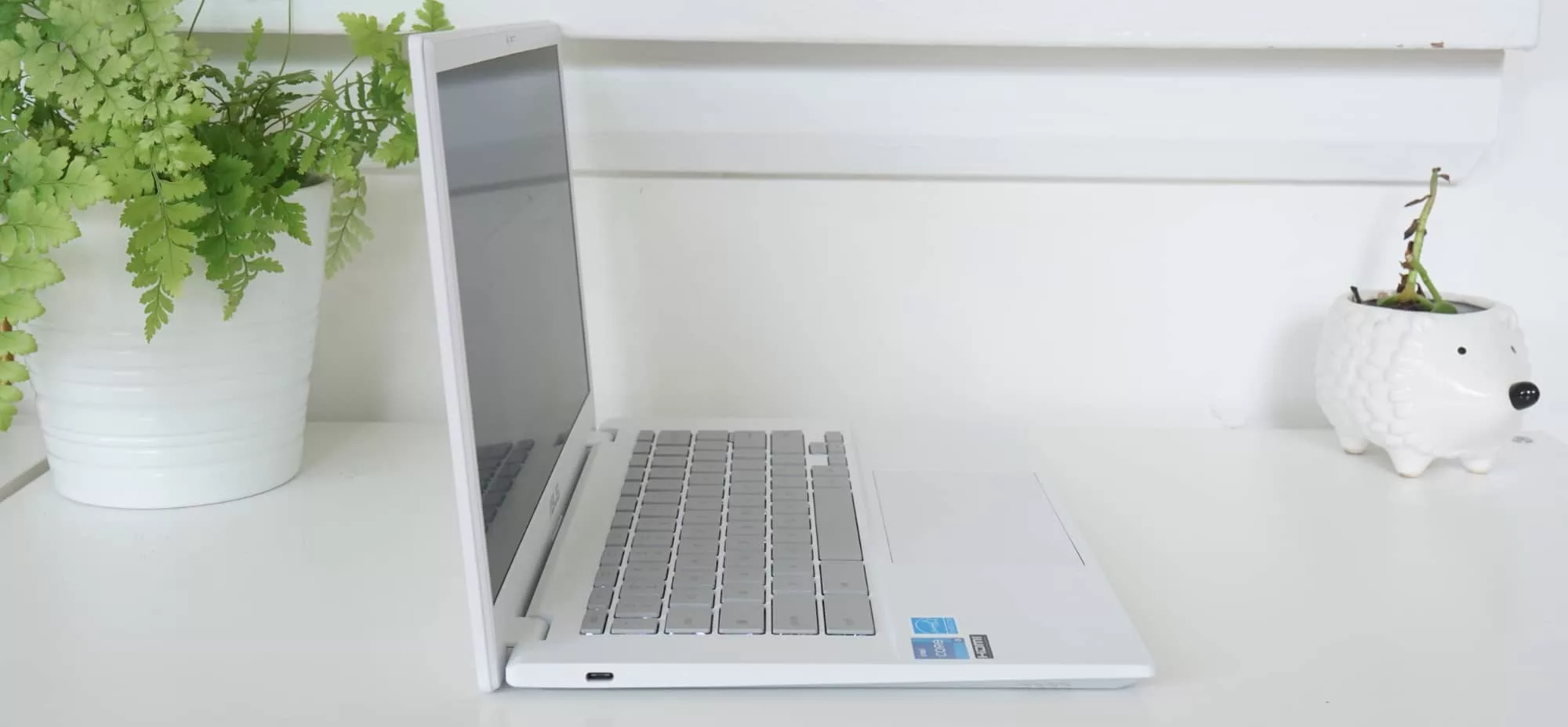
In 2026, that includes a bevy of 14 inch Chromebooks all modelled off much the same hardware. Asus has a 14 inch Chromebook in the CX14, while both the Lenovo 14 inch IdeaPad Slim 3 and HP Chromebook 14a are variations on that theme. All are priced between $229 and $269, down from their typical price of around the $449 price point.
Chromebooks with a little more playfulness include the Lenovo Duet 11, a $599 tablet hybrid with a pen and keyboard, while the Asus Chromebook Plus CX34 is more like a proper laptop meant to last for years that just so happens to run Chrome OS.
K-6: keeping laptop costs low
Chromebooks can be used by anyone, young or old, and they may make an ideal approach for someone who is mostly writing things down, using a web browser, and doesn’t need specific apps. They can be be set up to work with a family account.
But they’re not going to be the laptop for every need, and so if you prefer something with a larger and more full operating system, you may need to turn to the world of Windows and Mac.
For students in kindergarten through to 6th grade, the requirements aren’t likely to be high, regardless of what a school says. Throughout K6, students are likely watching videos for homework, writing notes and reports, and interacting with online work.
There’s not a lot they’re likely using a laptop for in school, meaning they may not need much for their time here. As such, you might not need to offer a big or super capable laptop. You just need something that does the job, providing reasonable battery life, a relatively speedy processor, and a size and weight that won’t break backs.
In terms of pricing, you’re likely looking at new Windows laptops priced from $350 to $750, and possibly a bit beyond depending on if you’re buying for fifth or sixth grade. Towards the end of primary school, you may want to consider laptops that are a little more capable, pushing towards the $1000 to $1500 price point, as that could keep them going throughout high school, as well.
For K through to third-grade, laptops priced from $250 to $450 could be suitable, though will usually be a little slower due to memory and processor choices.
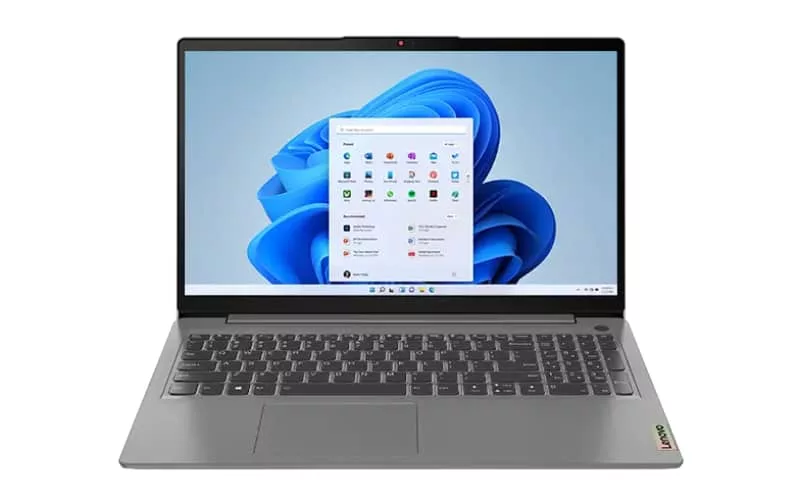
Take the 15.6 inch Lenovo IdeaPad Slim 3i, a large laptop with a $350 price point and the Intel N100 processor with 4GB RAM. Both the processor and 4 gigabytes of RAM are a little on the low side, telling you where the money is being saved. Microsoft’s Windows 11 Home arrives with the laptop, and it’s theoretically enough for kids, though the 15.6 inch size could mean it’s also too big, though the 1.55 kilogram weight isn’t as hefty as you might think.
HP offers a similar variant with more RAM and storage for $150 more, while the Asus Vivobook Go 15.6 is a slightly more spec’d variation for nearly $600 offering 8GB RAM and a lot more storage, telling you just how common 15.6 inch laptops really are.
If you’re looking for a smaller laptop, you’re typically looking at a 14 inch laptop, choosing between the $450 Acer Aspire Go Spin 14, the $550 14 inch Lenovo IdeaPad Slim 3, $550 HP Laptop 14s, or even a deal on a similar Asus 14 inch variant.
If it seems like there’s a theme here, it’s because laptop makers typically follow similar specs and feature sets, and deliver some somewhat similar products.
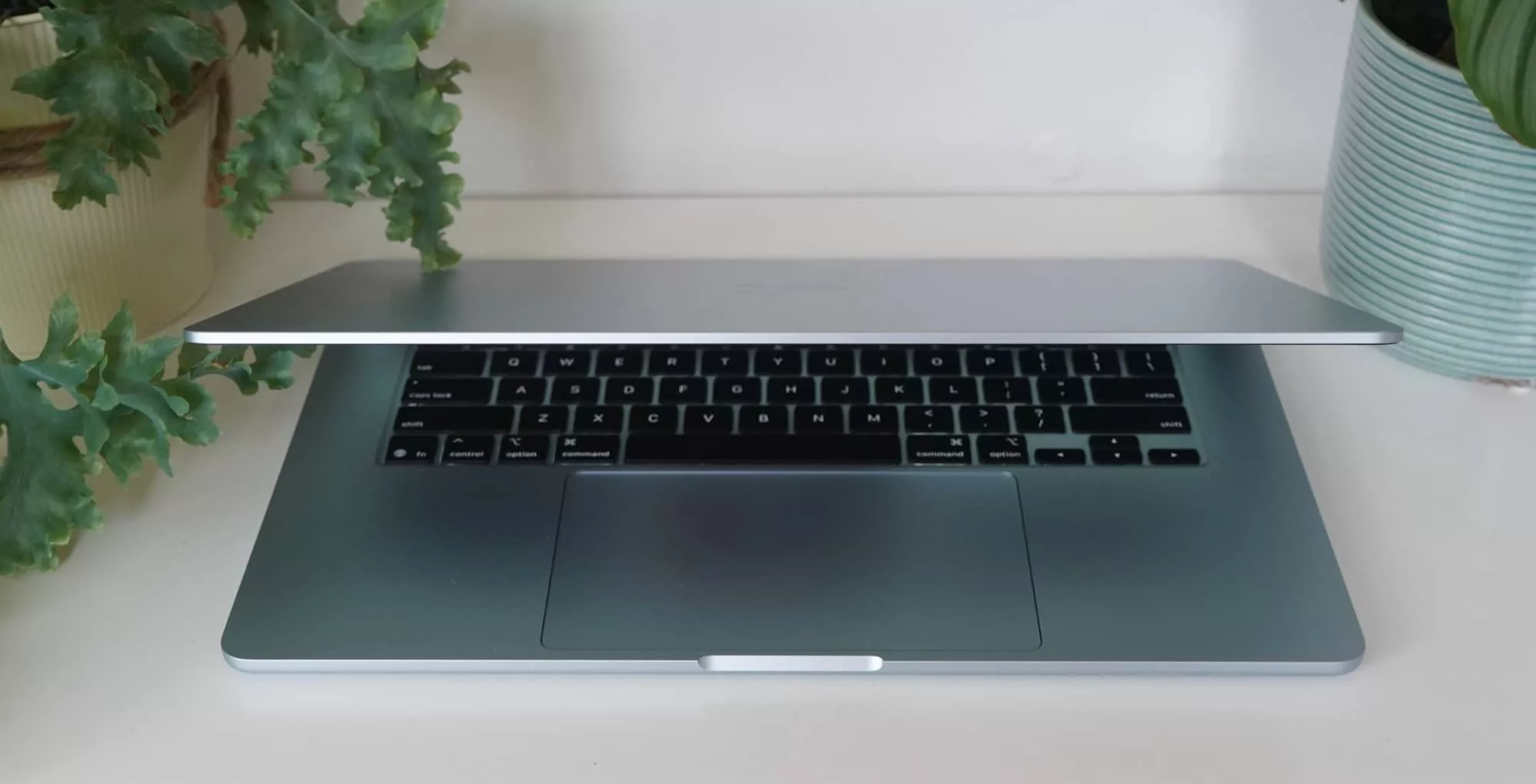
Alternatively, if you’re considering a MacBook Air, these typically start from the $1699 price point, though you may find some older models for less at some retailers.
High school: laptops for aspiring student minds
When you move into high school, laptop selection opens up and becomes more of a factor based on what the students wants to do in life.
For instance, if they’re not sure, the logic of any capable laptop that won’t feel slow will be fine. That should mean any computer of any size is logical, though we’d suggest 13 to 15 inch laptops, as they’ll typically offer the best assortment of tech, screen size, and battery life.
But if the student in your life wants to dive into creative arts, they may need something more suited for that.
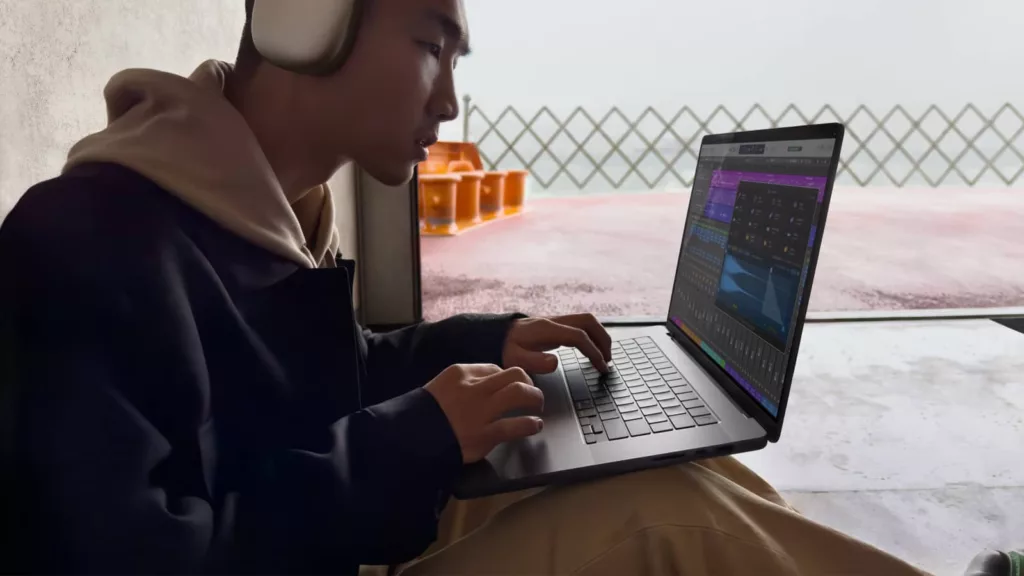
They may be considering 3D animation, video editing, or even data science. In these areas, an entry-level workstation-grade laptop might be ideal, best left for a category known as high performance laptops. These laptops tend to come with bigger screens, meatier processors and graphics chips, and usually plenty of memory (not just storage).
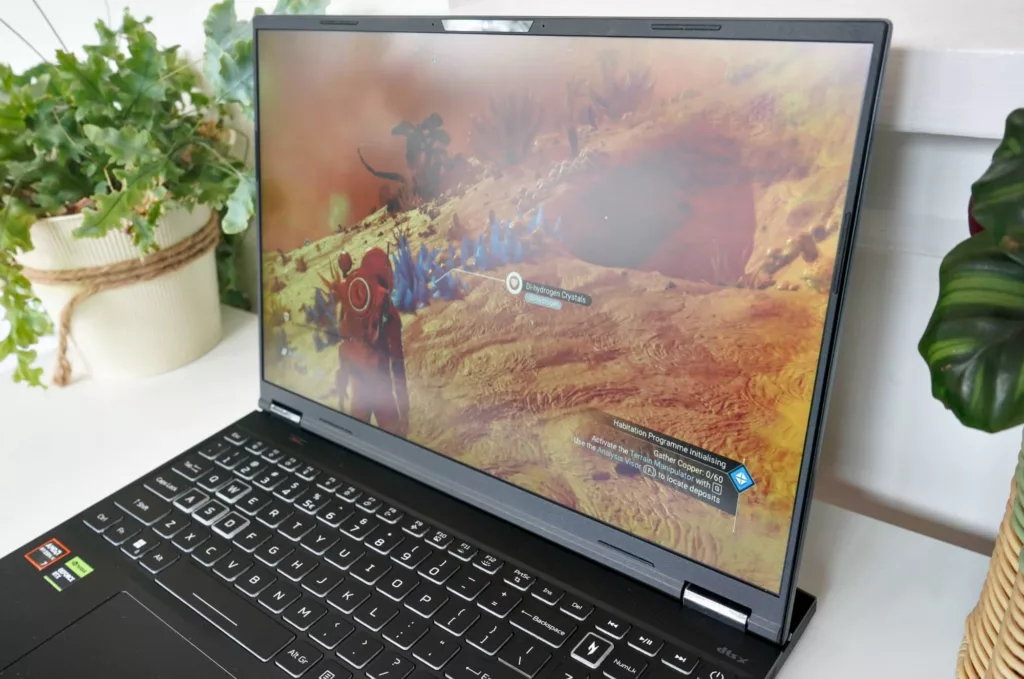
On the other hand, if someone is looking to join the game development world or do more coding, you may want to consider a gaming laptop with a decent graphics chip.
While any laptop can be a coding computer — and developers could definitely argue that using a regular computer could be ideal, given you can code anything — if students are going to dive into Unreal Engine or the Unity platform, they’ll likely want a system that can keep up with the graphical elements, not just the coding side of things.
Ultimately when buying laptops for high schoolers, your best bet is to talk to the people you’re buying for about what they want to do, and about the job and skills and things they want to do, not only in that school year, but possibly when they leave.
They will likely know more about what they want than you, and while you can more or less take the initiative for your kids for a primary school laptop, things get a little more complex and specific in high school.
Talk to your kids. Find out what they want and need in a laptop, and work out your options from there.